
The app chrome
Streamlit provides a few widgets at the top right corner of the app. These are referred to as "App Chrome". The Chrome includes a status area, toolbar and app menu.
App Menu
You can access the App Menu by clicking the three-dot hamburger icon in the top-right corner of the app.
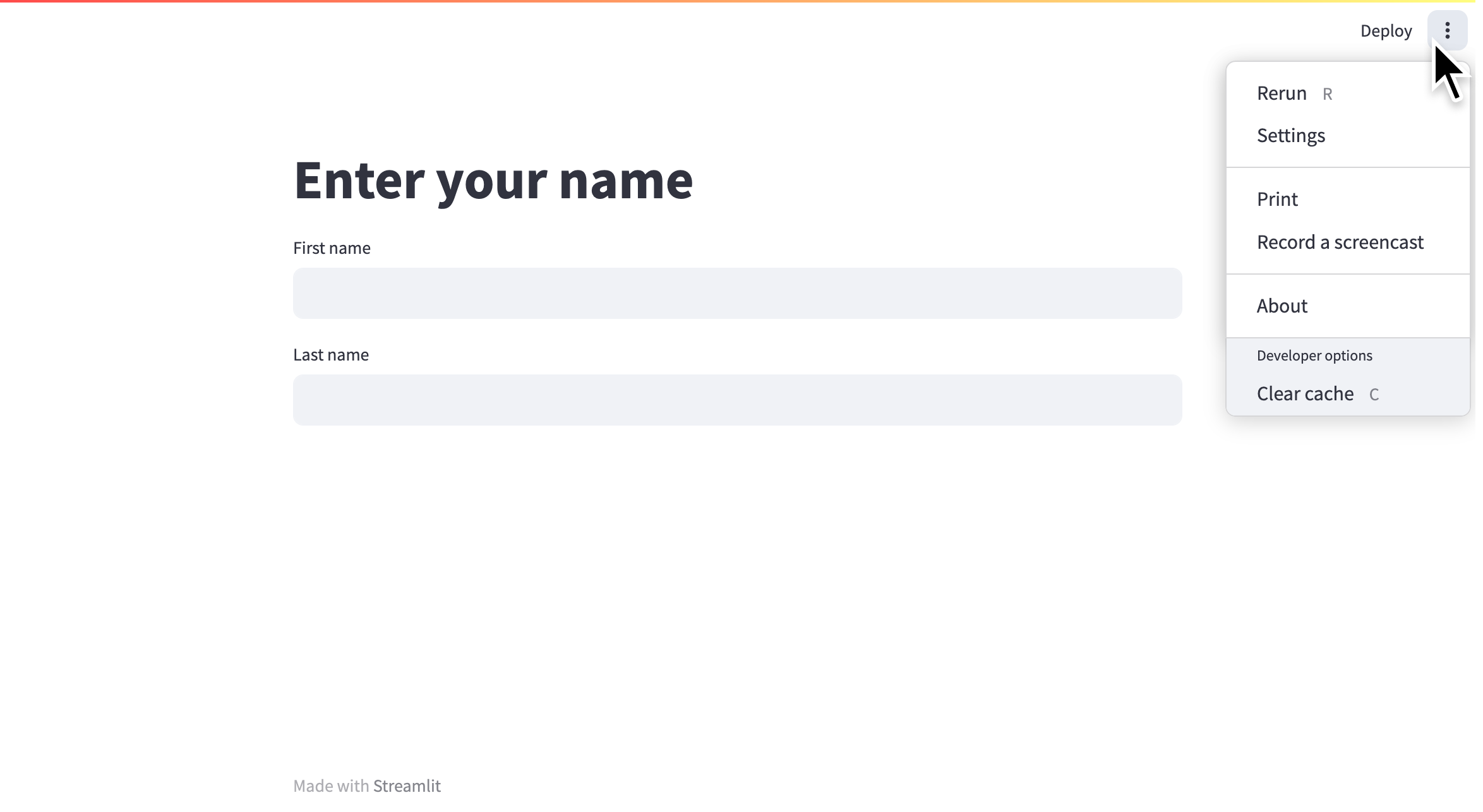
The app menu is split into two sections:
- The upper section contains options available to all viewers and
- the lower section (Developer options) contains options for developers.
Viewer options
Rerun
You can manually trigger a rerun of your app by clicking "Rerun" from the app menu. This rerun will not reset your session. Your widget states and values stored in st.session_state will be preserved.
Settings
You can control the appearance of your app using "Settings" from the app menu.
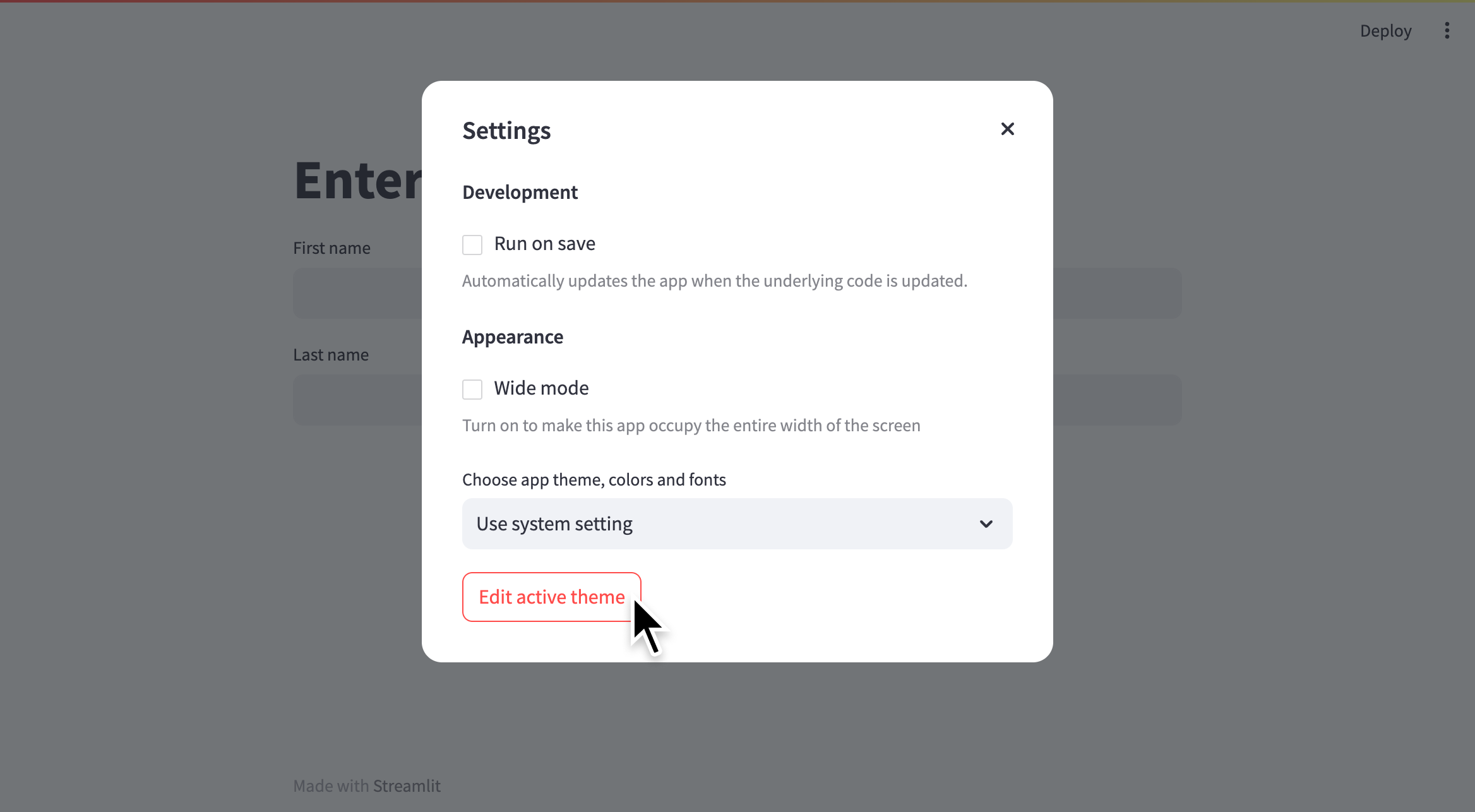
- The
Run on saveoption lets you update your app automatically, every time the source code changes. - The
Wide modeoption lets your app occupy the entire screen width. - The
App themedropdown lets you change your app theme.
Custom Theme
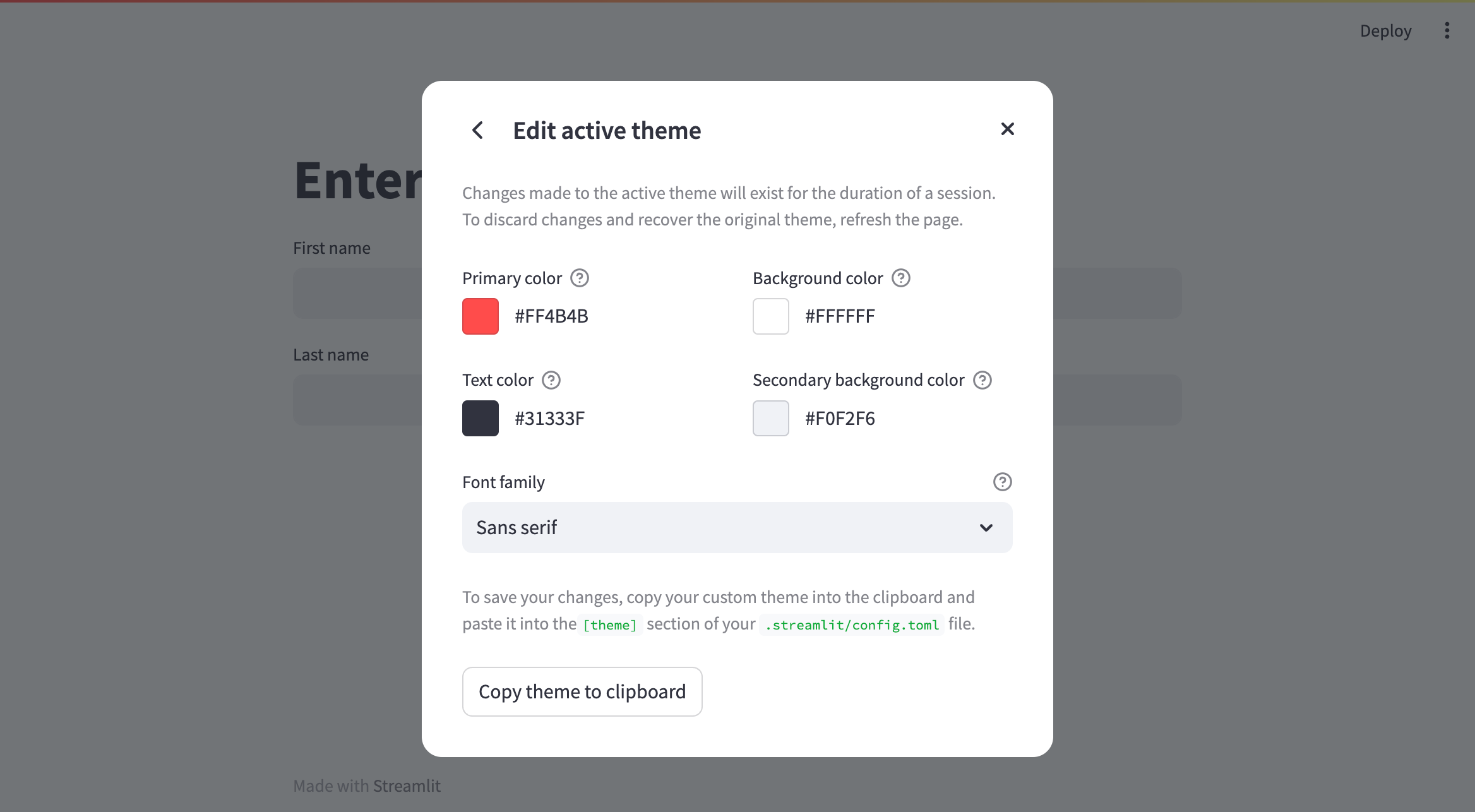
If you want to customize the colors and fonts of your app, you can do so using the Edit active theme option.
The Print option lets you print the Streamlit app page. This option uses your browser's built-in print-to-pdf function.
You can also use the keyboard shortcut (⌘+P or Ctrl+P) to invoke the print operation.
Record a screencast
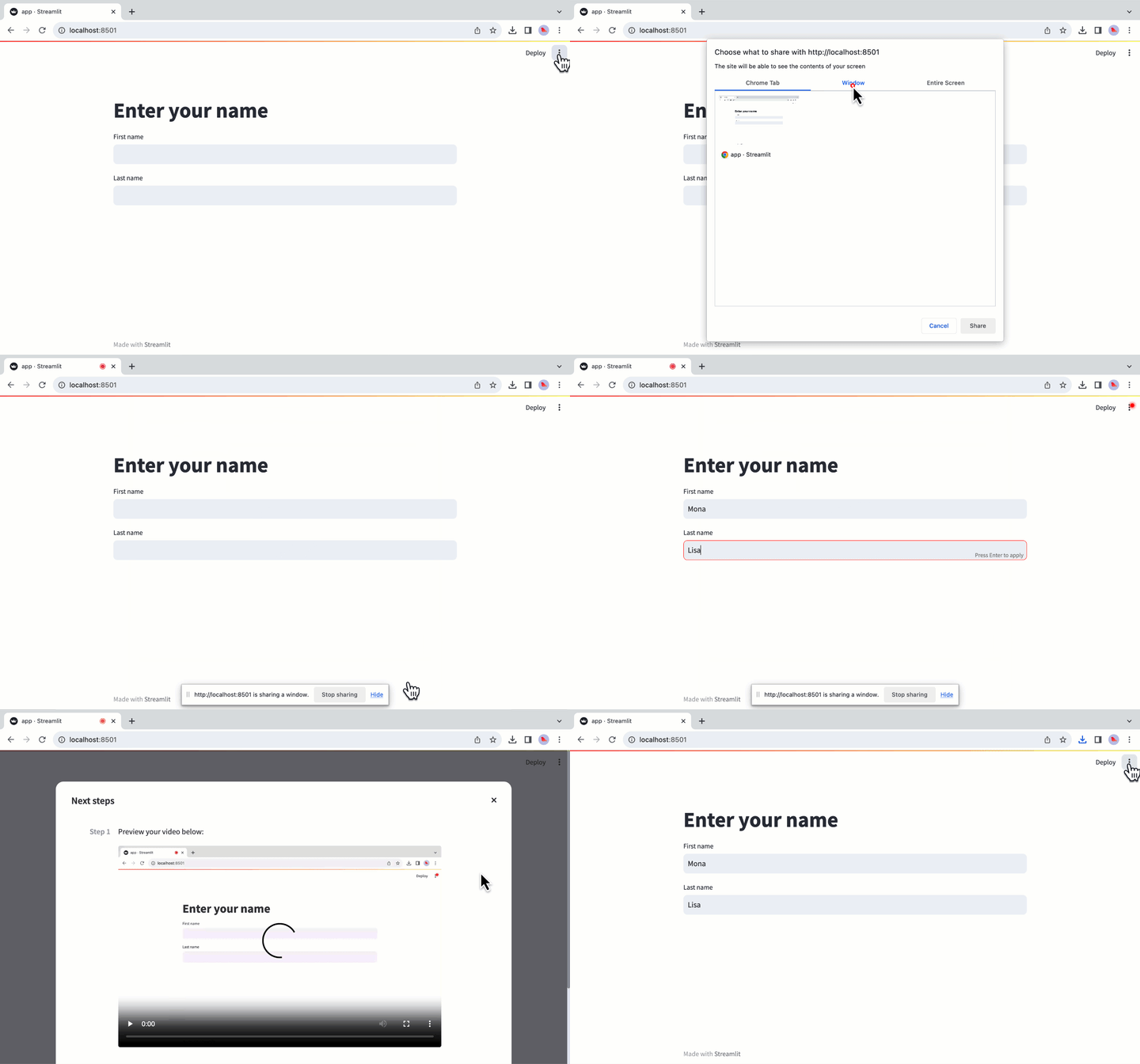
Some browsers provide an additional option in App Menu for screen recording. To start screen recording, click the Record a screencast option in the App Menu. The whole process looks like this:
About
The About option gives you the Streamlit version of your app.
Developer Options
By default, the developer options of the app are accessible only:
- when viewing the app locally.
- on Streamlit Community Cloud while logged into an account with administrative access.
Clear cache
Reset your app's cache by clicking Clear cache option from the app menu or by pressing C on your keyboard while not focused on an input element. This will remove all cached entries for @st.cache_data and @st.cache_resource.
Deploy
You can also deploy your app, using the Deploy button next to the app menu icon.
Architecture
Streamlit apps have a client-server structure. The Python backend of your app is the server. The frontend you view through a browser is the client. When you develop an app locally, your computer runs both the server and the client. If someone views your app across a local or global network, the server and client run on different machines.
Session State
Session State provides a dictionary-like interface where you can save information that is preserved between app reruns. The session is accessible using st.session_state.